We're thrilled to have you on board! Whether you're organizing a neighborhood clean-up or a multi-day festival, VolunteerLocal is designed to help you manage volunteers with confidence. This guide walks you through the core setup steps so you can go live quickly.
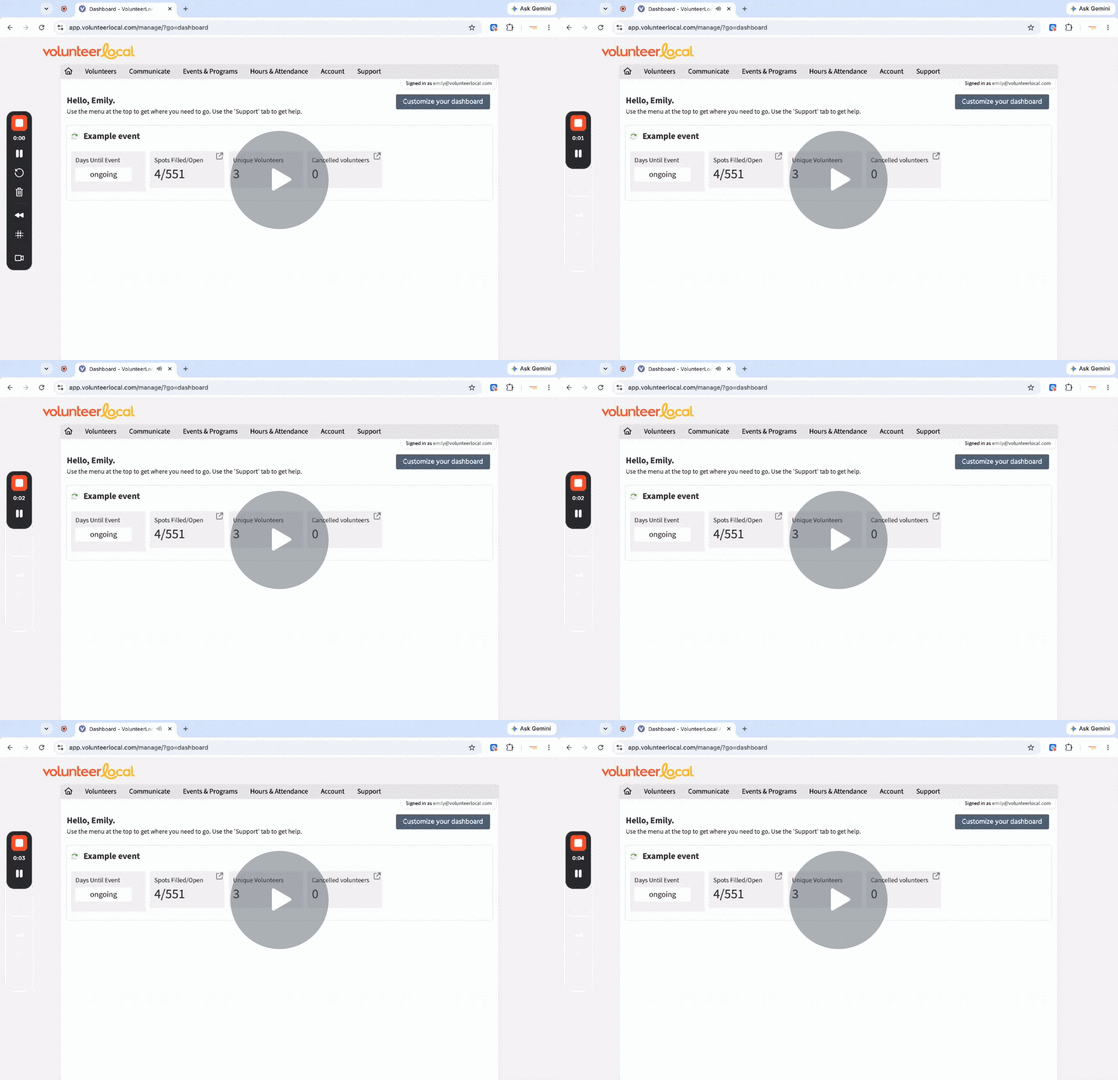
Setting up your VolunteerLocal Account - Watch Video
6 Steps to Get Started with VolunteerLocal
1. Add additional admin users [Optional]
If you’re working with a team, go ahead and add any co-organizers or admin users who will help manage the event
2. Create an Application 🎥
The application is the form that volunteers will fill out to join your organization. Returning volunteers can sign in with just their name and email, saving time down the road.
🔑 Key areas of the application to create and edit:
- Registration form fields 🎥: Customize the fields you want volunteers to complete, such as age, interests, or t-shirt size. This step defines what information you want to collect.
- Waiver/Disclaimer(optional): If you use a general waiver for all volunteers, add it here. If your waivers are event-specific, skip this and add one to each event later.
- Application Confirmation Message Email: Sent to volunteers after they submit the application. Use it to welcome them, share next steps, or include helpful links.
- Gateway Content: The gateway is what volunteers see when signing up for an event. Set expectations here — for example: "New volunteer? You'll be prompted to complete our application. Returning? Just enter your name and email to see available shifts."
3. Create an Event or ongoing Program
Add the event name, select the volunteer application you just built, and start customizing your event settings. You can return later to edit details at any time.
🔑 Key area of the event or ongoing program to create:
- Jobs: Define what needs to be done, such as Check-In, Water Station, or Cleanup. Add each role as a separate job. No need to include dates here — that's handled with shifts.
- Shifts: Define when you need volunteers. Create shifts under each job to assign dates, times, and the number of volunteers needed.
- Event Confirmation Message Email: Sent to volunteers after they sign up for a shift. Include anything they should know before event day — parking info, check-in instructions, or what to bring.
- Waiver/disclaimer (optional): Add an event-specific waiver here if needed.
4. Create communication templates
Customize your shift reminder emails or text messages. These can include event details, directions, or last-minute updates — and they're sent automatically based on the schedule you set.
👉 Create an Email or Text Message / SMS template
👉 How to create Shift Reminders & Cancellation Notices
👉 How to send a Broadcast Email or Text Message / SMS
5. Preview your signup experience
Before you go live, take a few minutes to walk through your event as a volunteer would. This is the best way to catch anything that needs adjusting before real signups begin.
Here's what to check:
- Open your signup preview: this ensures you're seeing the volunteer view, not the admin view
- Submit a test application: confirm you receive the application confirmation email
- Sign up for a shift: confirm you receive the event confirmation email
- Review job names, shift times, and volunteer counts: confirm everything appears the way you intended from the volunteer's perspective
6. Go Live & Promote Your Event!
Turn your Application and Event “Live” — then start sharing the link to recruit your volunteers!
👉 Landing Page Links, Event/Program Links & Visibility Settings